Integrations — the launcher rail
The launcher rail is the row of small icon chips that lives in the top
chrome strip (or in the left sidebar when tab_layout = "vertical"). Each
chip launches a configured command as a new tab when clicked. The rail is
configured by [[ui.launcher_icon]] entries in
~/.config/tmnl/config.toml, but you almost never edit that file by hand
— the Add integration discovery overlay drives the rail through a
keyboard-first picker that knows about every family sibling tmnl knows
about, whether you have it installed or not.
This page covers both surfaces — the rail and the overlay — and the small amount of TOML they manage on your behalf.
The launcher rail
Section titled “The launcher rail”Each chip in the rail is one LauncherIcon:
[[ui.launcher_icon]]id = "mnml"glyph = "" # nerd-font glyph or any charactercommand = "mnml" # binary on $PATH, OR :builtin sentinelargs = [] # optional argvtooltip = "mnml editor"color = "#89b4fa" # accent color for the chipClick a chip and tmnl spawns the command as a new pty tab — the same code
path New Tab takes, but the entry command is the launcher’s binary
instead of $SHELL. The chip strip’s hit-rects track the actual painted
glyph position (including the window-padding-balance offset, so the click
target lines up with what you see — fixed in 1aaaaaf).
Rail position is controlled by launcher_position:
| Value | Layout |
| --- | --- |
| top (default) | Inline in the top chrome strip, after the tab chips. |
| left | Narrow vertical rail at the window’s left edge. |
| bottom | Painted at the last row of the body. |
The rail auto-hides when the focused pane is Native (mnml / mixr ship their own activity bars; the duplicate tmnl-side rail just steals body width). Switching to a Shell tab brings it back.
Built-in commands
Section titled “Built-in commands”Two catalog entries are built into tmnl core. Their command field is a
:colon-prefixed sentinel rather than a real $PATH binary, and
new_launcher_tab dispatches them before attempting to spawn:
| Sentinel | Effect |
| --- | --- |
| :browser | Opens an embedded browser pane as a new tab at args[0] (default DuckDuckGo). See Browser pane. |
| :http | Opens a scratch .http file in $EDITOR (or mnml as the family fallback). args[0] overrides the editor; args[1] overrides the path. Default path ~/.cache/tmnl/scratch.http is created with a sample GET request on first use. |
Unknown sentinels log a warning instead of silently failing.
The discovery overlay
Section titled “The discovery overlay”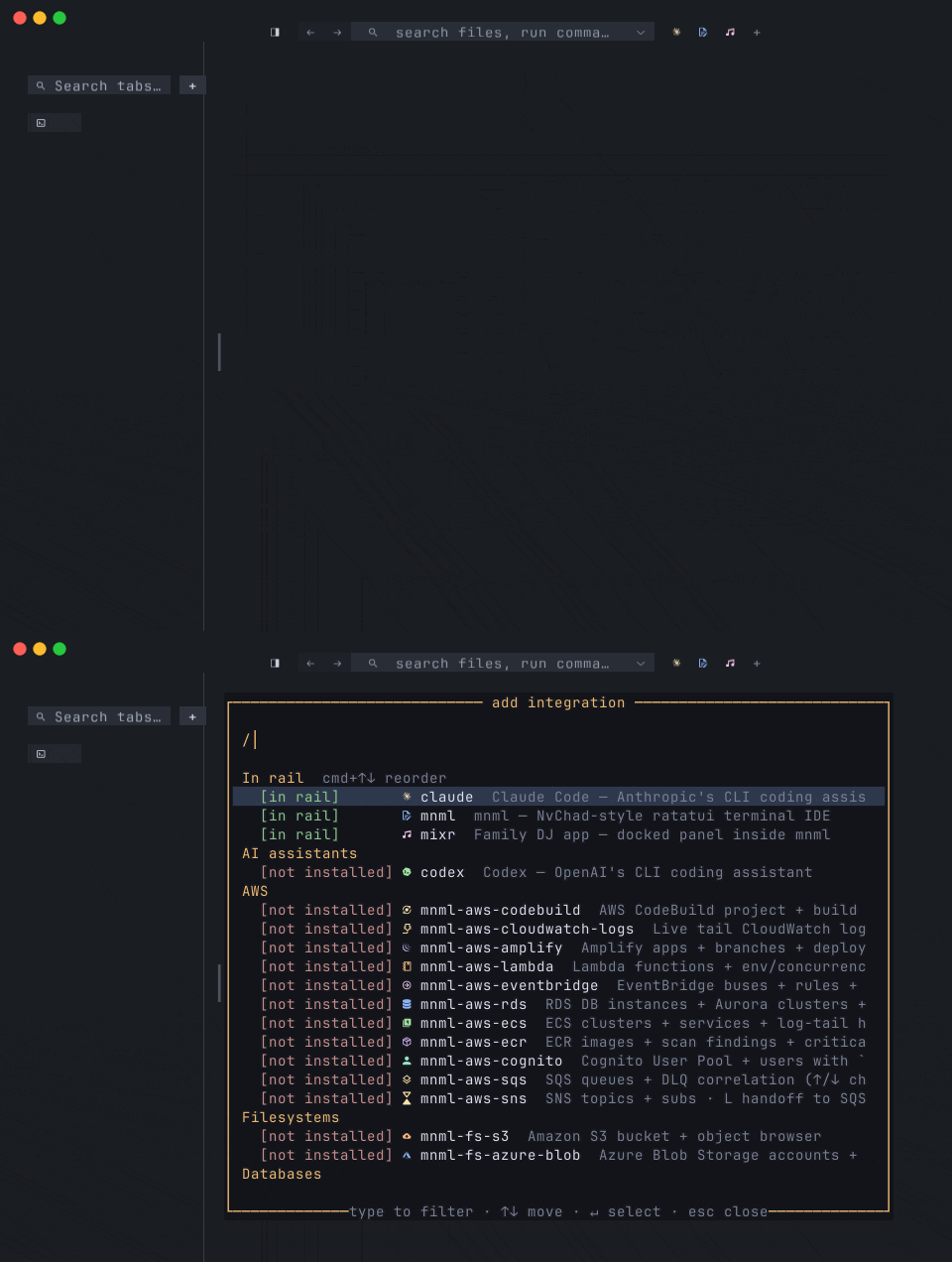
The + chip on the rail (at the end of the chip strip; on its own row
when the rail is empty) opens the discovery overlay. Also reachable from:
⌘⇧I- View > Add Integration…
- Shell > Integrations > Manage Integrations…
The overlay lists every entry in src/family_catalog::CATALOG — every
family sibling tmnl knows about — with one of three states:
| Tag | Meaning |
| --- | --- |
| [in rail] (green) | Already configured in cfg.launcher_icons. Enter removes it. |
| [installed] (green) | Binary is on $PATH (or a well-known install dir) but not in your rail. Enter adds it. |
| [not installed] (red) | Binary isn’t anywhere we looked. Enter copies the install command to your clipboard so you can paste-run it in a shell pane. |
Built-in entries (:browser, :http) are always treated as
[installed] — no $PATH lookup, you can add them with one keystroke.
Layout
Section titled “Layout”The list is split into two visually distinct sections:
── In rail ──  cmd+↑↓ reorder  [in rail]   M  mnml    mnml — NvChad-style ratatui …  [in rail]   C  claude  Claude Code — Anthropic's CLI …  [in rail]   ♪  mixr    Family DJ app — docked panel …
── Editor ── …── AI assistants ── [installed] X codex Codex — OpenAI's CLI coding …── AWS ── [not installed] ☁ mnml-aws-codebuild …- In rail — every
InRailrow incfg.launcher_iconsorder (= the chip order in the strip). Doubles as a live preview of what the rail currently looks like. - Catalog — every non-rail row grouped by category.
InRailrows are hidden here to avoid duplication.
Each row paints [tag] / glyph / binary / one-liner, aligned to a
fixed-column tag layout (15-cell tag column, then glyph, then name)
so [in rail] (9 cells) and [installed] (11 cells) line up cleanly
with the wider [not installed] (15 cells). The glyph paints in the same
accent color the chip will use once added, so you can preview the result
before committing.
| Key | Effect |
| --- | --- |
| ↑ / ↓ | Move the focused row. |
| ⌘↑ / ⌘↓ | Swap the focused In-rail row with its neighbor in cfg.launcher_icons (= visual swap in the strip). No-op on non-rail rows. |
| any printable char | Append to the substring filter. |
| Backspace | Drop the last filter character. |
| Enter | Fire the focused row’s action. Overlay stays open so multiple entries can be added in one session. |
| Esc | Dismiss. |
Every other key is consumed (greedy) — the overlay never leaks input to the background pty. The filter matches case-insensitively against the sibling’s binary name, its one-liner, and its category header.
| Action | Effect | | --- | --- | | Click a row | Focuses it and fires the same action as Enter. | | Click outside the overlay box | Dismisses (mirrors the macOS panel UX). | | Wheel | Scrolls the focused row. |
The renderer publishes last_row_layout (cell-y → visible row index) +
last_rect (the overlay’s box) every paint; the click handler does a
direct hit-test against those so the row math never drifts from what’s
on screen.
Multi-select
Section titled “Multi-select”Enter doesn’t close the overlay — it fires the focused row’s action and
then re-derives every row’s state so the just-acted row’s tag flips live
([installed] → [in rail] after an add; the opposite after a remove).
Hit Enter on the same row twice to toggle back. The pattern lets you set
up your full rail in one overlay session: type a filter, Enter, clear
filter, type the next one, Enter, repeat. Esc when done.
Reordering
Section titled “Reordering”⌘↑ / ⌘↓ while focused on an In-rail row swaps it with its neighbor
in cfg.launcher_icons. The strip’s chip order tracks that order, so
the chip moves left/right (or up/down on a vertical rail) live. The
overlay’s row stays focused on the same sibling so the cursor visually
follows the moved row.
Reordering is a no-op on non-rail rows — categories aren’t user-orderable.
Auto-refresh of stale ASCII fallback glyphs
Section titled “Auto-refresh of stale ASCII fallback glyphs”The catalog ships nerd-font glyphs (e.g. mnml-patched for
Claude Code, for mnml itself). Earlier sessions of the catalog
shipped defensive single-ASCII fallbacks (M, C, X) for users whose
font didn’t have the nerd-font slots; those got persisted into
launcher_icons entries on disk.
Opening the discovery overlay now scans your rail for single-ASCII-letter
glyphs and quietly upgrades them to the current catalog glyph + color
(family_catalog::refresh_stale_glyphs). Conservative on purpose: anything
that doesn’t look like a single ASCII letter is left alone, so a user who
manually picked a custom glyph (♪, ★, an emoji) won’t see it silently
overwritten.
Color resolution
Section titled “Color resolution”Catalog rows ship colors as standard names ("yellow", "pink",
"blue") rather than hexes — easier to read in source. On insert into
launcher_icons, the name is resolved to a #rrggbb via
IconTemplate::color_hex before being written to disk, so the strip’s
parse_hex_rgba always reads a valid hex. Unknown names fall back to a
neutral gray. Custom hex strings ("#abcdef") are written through
unchanged.
Install command copy
Section titled “Install command copy”![Enter on a [not installed] row copies the sibling's install command to the clipboard — paste-run it in a shell pane and the row flips to [installed] on re-open](/_astro/discovery-install.CD7g_YYm.gif)
For [not installed] rows, Enter copies the install command to your
clipboard so you can paste-run it in a shell pane. The shape depends on
the sibling:
- Cargo siblings (most family entries):
cargo install --git https://github.com/chris-mclennan/<repo> --tag vX.Y.Z <binary> - npm CLIs (Claude Code, Codex):
npm install -g @anthropic-ai/claude-code - Built-in entries (
:browser,:http): A no-op note explaining the binary ships with tmnl/mnml core.
After running the install, re-opening the overlay re-scans $PATH and
the row flips from [not installed] to [installed] — one more Enter
adds it to the rail.
The underlying TOML
Section titled “The underlying TOML”The overlay writes back to ~/.config/tmnl/config.toml. A typical rail
ends up looking like:
launcher_position = "top"
[[ui.launcher_icon]]id = "mnml"glyph = ""command = "mnml"args = []tooltip = "mnml editor"color = "#89b4fa"
[[ui.launcher_icon]]id = "claude_code"glyph = ""command = "claude"args = []tooltip = "Claude Code"color = "#f9e2af"
[[ui.launcher_icon]]id = "browser"glyph = ""command = ":browser"args = ["https://duckduckgo.com"]tooltip = "Open browser tab"color = "#89b4fa"You can edit this file directly — the rail picks up changes on the next
launch — but the overlay is the supported workflow. Hand-editing is for
things the overlay doesn’t cover yet (custom start URL for :browser,
custom scratch path for :http, swapping the catalog glyph for a custom
character).
The menu surface
Section titled “The menu surface”The same launcher rail is mirrored as Shell > Integrations — one
menu item per chip, labels prefer the icon’s tooltip (e.g.
Claude Code) over the raw binary. Clicking an item fires
App::new_launcher_tab(idx) — the exact same code path the rail chip
click takes. Empty rail shows (no integrations configured). A
Manage Integrations… trailer at the bottom always opens the discovery
overlay, so the menu is a discoverable surface for users who don’t see
the rail (launcher_position = "left" on a narrow window, force-hidden
tab bar, etc.).
Shell > Splits > Split with Integration ▸ is the same list with a
different dispatch: click splits the active pane instead of spawning a
new tab.
Where to go next
Section titled “Where to go next”- Tabs, splits, and panes — what a launcher chip click actually opens.
- Browser pane — the
:browserbuilt-in’s pane kind and its chrome strip. - Multi-window —
cfg.launcher_iconsis one of the per-window-cfg-overrideable knobs. - Menu bar reference — how the dynamic Shell > Integrations submenu hangs off the rail config.
- The catalog:
src/family_catalog.rs. - The overlay:
src/discovery_overlay.rs. - The dispatch:
src/app_tabs.rs::new_launcher_tab.